Harness Engineering: The Complete Guide to Configuring Claude Code for Maximum Productivity
Learn how to build a harness around Claude Code using CLAUDE.md, hooks, commands, skills, and permissions. A practical guide with real examples and diagrams.
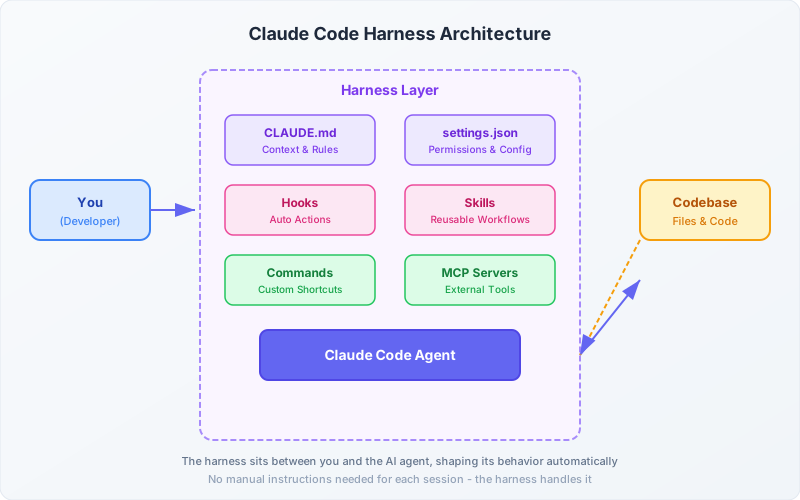
What Is Harness Engineering?
Imagine hiring a brilliant contractor who knows nothing about your project. Every morning, you’d spend 30 minutes explaining your coding conventions, project structure, and deployment process. That’s what using Claude Code without a harness feels like.
Harness engineering is the practice of building a persistent configuration layer around an AI coding agent so it behaves correctly every single time — without you repeating instructions.
Think of it like this:
| Without Harness | With Harness |
|---|---|
| ”Please use TypeScript” (every session) | Automatically knows to use TypeScript |
| ”Run prettier after editing” (manually) | Auto-formats on every file save |
| ”Don’t push to main” (hope it remembers) | Blocked by permission rules |
| ”Use our API patterns” (copy-paste examples) | Reads your conventions from CLAUDE.md |
The harness sits between you and the AI agent, shaping its behavior automatically:
The Five Pillars of a Claude Code Harness
A complete harness is built from five components. You don’t need all five on day one — start with CLAUDE.md and add more as your workflow matures.
1. CLAUDE.md — The Brain
CLAUDE.md is a markdown file at the root of your repository. Claude Code reads it automatically at the start of every session. It’s where you define who Claude is when working on your project.
What to put in CLAUDE.md:
# CLAUDE.md

## Project Overview
This is a Next.js 14 e-commerce app using TypeScript, Prisma ORM,
and Tailwind CSS. We deploy to Vercel.

## Key Commands
- `npm run dev` — Start dev server
- `npm run test` — Run vitest
- `npm run lint` — ESLint + Prettier check
- `npm run build` — Production build

## Coding Conventions
- Use TypeScript strict mode. No `any` types.
- React components: functional with hooks only.
- API routes: use zod for input validation.
- Database: always use Prisma transactions for writes.
- CSS: Tailwind utility classes. No inline styles.

## Architecture
- `/src/app` — Next.js App Router pages
- `/src/lib` — Shared utilities and helpers
- `/src/components` — React components (co-located tests)
- `/prisma` — Database schema and migrations

## Important Rules
- NEVER commit .env files
- ALWAYS run tests before suggesting code is complete
- Use conventional commits (feat:, fix:, chore:)
Pro tips for writing great CLAUDE.md files:
- Be specific, not generic. “Use TypeScript” is weak. “Use TypeScript strict mode with explicit return types on exported functions” is strong.
- Include commands. Claude can run them. Tell it what commands exist.
- Explain the “why.” Instead of “don’t use ORM raw queries,” say “don’t use ORM raw queries because we had SQL injection issues in the past.”
- Keep it under 500 lines. Too long and the important parts get diluted. Move detailed guides to skills (see Pillar 4).
- Update it regularly. CLAUDE.md should evolve with your project.
2. Settings & Permissions — The Guardrails
The .claude/settings.json file controls what Claude Code is allowed to do. This is your safety net.
{
  "permissions": {
    "allow": [
      "Read",
      "Edit",
      "Write",
      "Glob",
      "Grep",
      "Bash(npm run test)",
      "Bash(npm run lint)",
      "Bash(npm run build)",
      "Bash(git add:*)",
      "Bash(git commit:*)",
      "Bash(git status)",
      "Bash(git diff:*)",
      "Bash(git log:*)",
      "Bash(npx prettier:*)"
    ],
    "deny": [
      "Bash(git push --force:*)",
      "Bash(rm -rf:*)",
      "Bash(DROP TABLE:*)",
      "Bash(curl:*)"
    ]
  }
}
How permission matching works:
"Bash(npm run test)"— Allows exactly this command"Bash(git:*)"— Allows any command starting withgit"Read"— Allows all file reads (no restrictions)- Deny rules always take precedence over allow rules
Two-level system:
| File | Scope | Shared? |
|---|---|---|
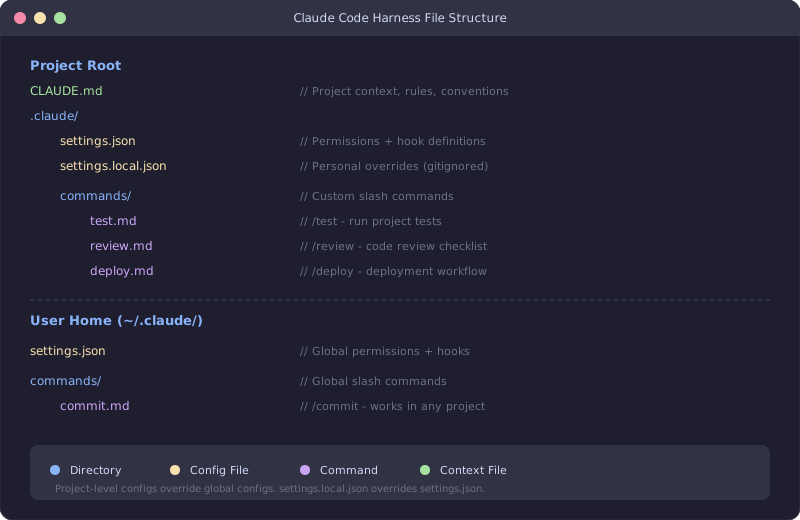
~/.claude/settings.json | All projects (global) | No (your machine) |
.claude/settings.json | This project only | Yes (commit to git) |
.claude/settings.local.json | This project, your machine | No (gitignored) |
Start permissive and tighten over time. You can always approve individual actions when prompted.
3. Hooks — The Autopilot
Hooks are shell scripts that run automatically when Claude Code performs certain actions. They’re the most powerful part of the harness.
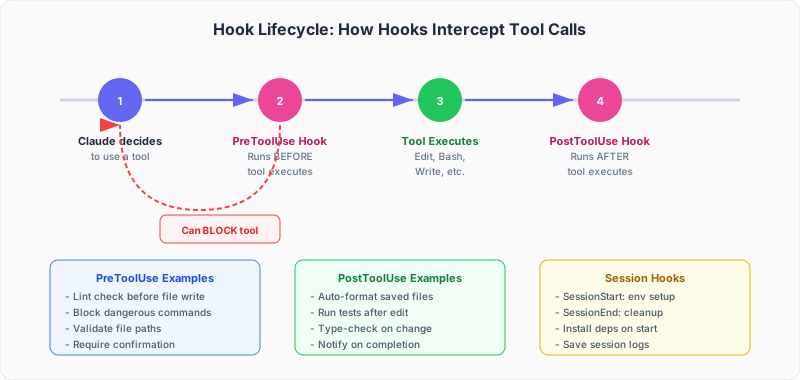
Hook types:
| Hook | When It Runs | Can Block? |
|---|---|---|
PreToolUse | Before a tool executes | Yes |
PostToolUse | After a tool executes | No |
SessionStart | When a session begins | No |
SessionEnd | When a session ends | No |
Configure hooks in .claude/settings.json:
{
  "hooks": {
    "PostToolUse": [
      {
        "matcher": "Edit|Write",
        "hooks": [
          {
            "type": "command",
            "command": "npx prettier --write \"$CLAUDE_FILE_PATH\"",
            "timeout": 10000,
            "onFailure": "warn"
          }
        ]
      }
    ],
    "PreToolUse": [
      {
        "matcher": "Bash",
        "hooks": [
          {
            "type": "command",
            "command": "echo \"$CLAUDE_TOOL_INPUT\" | grep -qE '(rm -rf /|DROP DATABASE|:(){ :|:& };:)' && exit 1 || exit 0",
            "timeout": 5000,
            "onFailure": "fail"
          }
        ]
      }
    ],
    "SessionStart": [
      {
        "hooks": [
          {
            "type": "command",
            "command": "npm install --silent 2>/dev/null; echo 'Dependencies ready'",
            "timeout": 30000,
            "onFailure": "warn"
          }
        ]
      }
    ]
  }
}
Available environment variables in hooks:
| Variable | Description |
|---|---|
CLAUDE_FILE_PATH | The file being edited/written |
CLAUDE_TOOL | The tool being used (Edit, Bash, etc.) |
CLAUDE_TOOL_INPUT | The full input to the tool |
CLAUDE_SESSION_ID | Current session identifier |
Practical hook recipes:
Auto-format on save (most common):
{
  "matcher": "Edit|Write",
  "hooks": [{
    "type": "command",
    "command": "npx prettier --write \"$CLAUDE_FILE_PATH\"",
    "timeout": 10000,
    "onFailure": "warn"
  }]
}
Run tests after editing source files:
{
  "matcher": "Edit",
  "hooks": [{
    "type": "command",
    "command": "case \"$CLAUDE_FILE_PATH\" in *.test.*) ;; *.ts|*.tsx) npm run test -- --run 2>&1 | tail -5;; esac",
    "timeout": 30000,
    "onFailure": "warn"
  }]
}
Type-check after TypeScript changes:
{
  "matcher": "Edit|Write",
  "hooks": [{
    "type": "command",
    "command": "case \"$CLAUDE_FILE_PATH\" in *.ts|*.tsx) npx tsc --noEmit 2>&1 | tail -10;; esac",
    "timeout": 20000,
    "onFailure": "warn"
  }]
}
The onFailure setting matters:
"fail"— Block the tool call entirely (PreToolUse only)"warn"— Show the warning to Claude but continue"ignore"— Silently swallow the error
4. Skills — The Playbooks
Skills are on-demand instruction sets. Unlike CLAUDE.md (which is always loaded), skills are loaded only when triggered. This saves tokens and keeps the context focused.
Why use skills instead of putting everything in CLAUDE.md?
- CLAUDE.md is loaded every session (~500-2000 tokens)
- Skills are loaded only when needed (~0 tokens when unused)
- A project with 10 detailed workflows would bloat CLAUDE.md to 5000+ tokens
- With skills, only the relevant workflow loads
Skill structure:
~/.claude/skills/
└── deploy/
    ├── SKILL.md        # Instructions (loaded into context)
    └── deploy.sh       # Script (executed by Claude)
Example SKILL.md:
# Deploy Skill

## When to use
Use this skill when the user asks to deploy, release, or publish.

## Steps
1. Run `npm run build` to ensure the project compiles
2. Run `npm run test` to verify all tests pass
3. Run `./deploy.sh` to execute the deployment
4. Verify the deployment by checking the health endpoint

## Important
- Never deploy on Fridays
- Always create a git tag before deploying
- Notify #deployments channel after success
5. Custom Commands — The Shortcuts
Custom commands are slash commands you define for your project. They’re markdown files that become available as /command-name in Claude Code.
Create a command:
<!-- .claude/commands/review.md -->
---
description: "Review code changes for quality and correctness"
---

Review the current git diff against these criteria:

1. **Correctness** — Does the logic do what it should?
2. **Security** — Any injection, XSS, or auth issues?
3. **Performance** — N+1 queries? Unnecessary re-renders?
4. **Types** — Are TypeScript types accurate and complete?
5. **Tests** — Are edge cases covered?

Focus on issues, not style. Skip nitpicks.
If everything looks good, say so briefly.
Use it: Type /review in Claude Code and the full prompt loads automatically.
Commands with arguments:
<!-- .claude/commands/test.md -->
---
description: "Run tests for a specific module"
---

Run the tests for the module: $ARGUMENTS

If any tests fail:
1. Analyze the failure
2. Fix the issue
3. Re-run to confirm the fix
Usage: /test user authentication
File Structure Overview
Here’s how all the pieces fit together in your project:
Step-by-Step: Building Your First Harness
Let’s build a real harness from scratch. I’ll use a TypeScript React project as an example.
Step 1: Create CLAUDE.md
touch CLAUDE.mdStart minimal:
# CLAUDE.md

## Project
React + TypeScript app with Vite. Uses React Router, Zustand, and Tailwind.

## Commands
- `npm run dev` — Dev server on port 5173
- `npm run test` — Vitest
- `npm run lint` — ESLint
- `npm run build` — Production build

## Rules
- TypeScript strict mode. No `any`.
- Functional components only.
- Tests go next to source files: `Button.tsx` → `Button.test.tsx`
- Use Tailwind. No CSS modules or styled-components.
Step 2: Set Up Permissions
mkdir -p .claude// .claude/settings.json
{
"permissions": {
"allow": [
"Read",
"Edit",
"Write",
"Glob",
"Grep",
"Bash(npm run:*)",
"Bash(npx:*)",
"Bash(git:*)"
],
"deny": [
"Bash(git push --force:*)",
"Bash(rm -rf:*)"
]
}
}Step 3: Add Auto-Format Hook
// .claude/settings.json (add hooks section)
{
  "permissions": {
    "allow": ["Read", "Edit", "Write", "Glob", "Grep", "Bash(npm run:*)", "Bash(npx:*)", "Bash(git:*)"],
    "deny": ["Bash(git push --force:*)", "Bash(rm -rf:*)"]
  },
  "hooks": {
    "PostToolUse": [
      {
        "matcher": "Edit|Write",
        "hooks": [{
          "type": "command",
          "command": "npx prettier --write \"$CLAUDE_FILE_PATH\" 2>/dev/null || true",
          "timeout": 10000,
          "onFailure": "warn"
        }]
      }
    ]
  }
}
Step 4: Add a Review Command
mkdir -p .claude/commands<!-- .claude/commands/review.md -->
---
description: "Review staged changes"
---
Review the current `git diff --staged` and check for:
1. Logic errors or bugs
2. Security issues
3. Missing error handling at system boundaries
4. TypeScript type accuracy
5. Missing tests for new functionality
Be concise. Focus on real issues, not style preferences.Step 5: Commit Your Harness
git add CLAUDE.md .claude/settings.json .claude/commands/
git commit -m "feat: add Claude Code harness configuration"
Now every team member who clones the repo gets the same Claude Code behavior.
Advanced Patterns
Pattern 1: Project-Type Detection in Hooks
If you work on multiple project types, your hooks can detect the context:
{
  "hooks": {
    "PostToolUse": [
      {
        "matcher": "Edit|Write",
        "hooks": [{
          "type": "command",
          "command": "if [ -f package.json ]; then npx prettier --write \"$CLAUDE_FILE_PATH\" 2>/dev/null; elif [ -f pyproject.toml ]; then black \"$CLAUDE_FILE_PATH\" 2>/dev/null; elif [ -f Cargo.toml ]; then rustfmt \"$CLAUDE_FILE_PATH\" 2>/dev/null; fi; true",
          "timeout": 15000,
          "onFailure": "warn"
        }]
      }
    ]
  }
}
Pattern 2: Staged Quality Gates
Run increasingly expensive checks:
{
  "hooks": {
    "PostToolUse": [
      {
        "matcher": "Edit|Write",
        "hooks": [
          {
            "type": "command",
            "command": "npx prettier --check \"$CLAUDE_FILE_PATH\" 2>/dev/null || npx prettier --write \"$CLAUDE_FILE_PATH\"",
            "timeout": 10000,
            "onFailure": "warn"
          },
          {
            "type": "command",
            "command": "case \"$CLAUDE_FILE_PATH\" in *.ts|*.tsx) npx tsc --noEmit 2>&1 | head -20;; esac",
            "timeout": 20000,
            "onFailure": "warn"
          }
        ]
      }
    ]
  }
}
Pattern 3: Session Bootstrap
Set up your environment automatically when Claude starts:
{
  "hooks": {
    "SessionStart": [
      {
        "hooks": [{
          "type": "command",
          "command": "npm install --silent 2>/dev/null && npm run build --silent 2>/dev/null; echo '✓ Environment ready'",
          "timeout": 60000,
          "onFailure": "warn"
        }]
      }
    ]
  }
}
Pattern 4: Different Rules for Different Files
Use the matcher to apply hooks selectively:
{
  "hooks": {
    "PostToolUse": [
      {
        "matcher": "Edit|Write",
        "hooks": [{
          "type": "command",
          "command": "case \"$CLAUDE_FILE_PATH\" in *.py) black \"$CLAUDE_FILE_PATH\" && ruff check --fix \"$CLAUDE_FILE_PATH\";; *.ts|*.tsx|*.js|*.jsx) npx prettier --write \"$CLAUDE_FILE_PATH\" && npx eslint --fix \"$CLAUDE_FILE_PATH\";; *.go) gofmt -w \"$CLAUDE_FILE_PATH\";; *.rs) rustfmt \"$CLAUDE_FILE_PATH\";; esac; true",
          "timeout": 15000,
          "onFailure": "warn"
        }]
      }
    ]
  }
}
Common Mistakes to Avoid
1. Overloading CLAUDE.md
Bad:
## API Documentation
### POST /api/users
Accepts: { name: string, email: string, ... }
Returns: { id: number, ... }
(... 200 more lines of API docs ...)
Good:
## API Documentation
API docs are in `/docs/api.md`. Read that file when working on API routes.
Why: Claude can read files on demand. Don’t duplicate content — point to it.
2. Hooks That Are Too Slow
If your hook takes 30+ seconds, it will frustrate the workflow. Keep hooks fast:
- Format a single file: ~1-2s (good)
- Run full test suite: ~30-60s (too slow for PostToolUse)
- Full build: ~2-5 min (never use as a hook)
For expensive checks, use a custom command (/test) instead of a hook.
3. Overly Restrictive Permissions
Starting with "deny": ["Bash(*)"] and only allowing specific commands sounds safe, but it cripples Claude’s ability to investigate problems. Better approach:
- Allow general read/search tools freely
- Allow your project’s standard commands
- Deny only truly dangerous operations
4. Not Committing the Harness
Your .claude/settings.json and .claude/commands/ should be committed to git so the whole team benefits. Only .claude/settings.local.json should be gitignored (for personal preferences).
Measuring Harness Effectiveness
How do you know your harness is working? Track these signals:
- Fewer corrections — You spend less time saying “no, do it this way”
- Consistent output — Code follows your patterns without reminders
- Faster sessions — Less back-and-forth means faster task completion
- Team alignment — New team members get the same Claude behavior
Quick Reference Cheat Sheet
| What | Where | When Loaded |
|---|---|---|
| Project context & rules | CLAUDE.md | Every session |
| Permissions | .claude/settings.json | Every session |
| Auto-actions | hooks in settings.json | On matching tool use |
| Slash commands | .claude/commands/*.md | When invoked with / |
| Reusable workflows | ~/.claude/skills/ | When triggered |
| Personal overrides | .claude/settings.local.json | Every session (gitignored) |
| Global settings | ~/.claude/settings.json | Every session (all projects) |
Getting Started Today
You don’t need the perfect harness on day one. Start here:
- Day 1: Create a
CLAUDE.mdwith your project overview, key commands, and top 3 coding rules - Week 1: Add
.claude/settings.jsonwith basic permissions and an auto-format hook - Week 2: Create 2-3 custom commands for your most common workflows
- Month 1: Refine based on patterns — move repetitive instructions into hooks or commands
The best harness is one that grows with your project. Start small, observe what you repeat, and automate it.
Harness engineering turns Claude Code from a capable assistant into a team member who already knows your codebase, follows your conventions, and never forgets the rules.